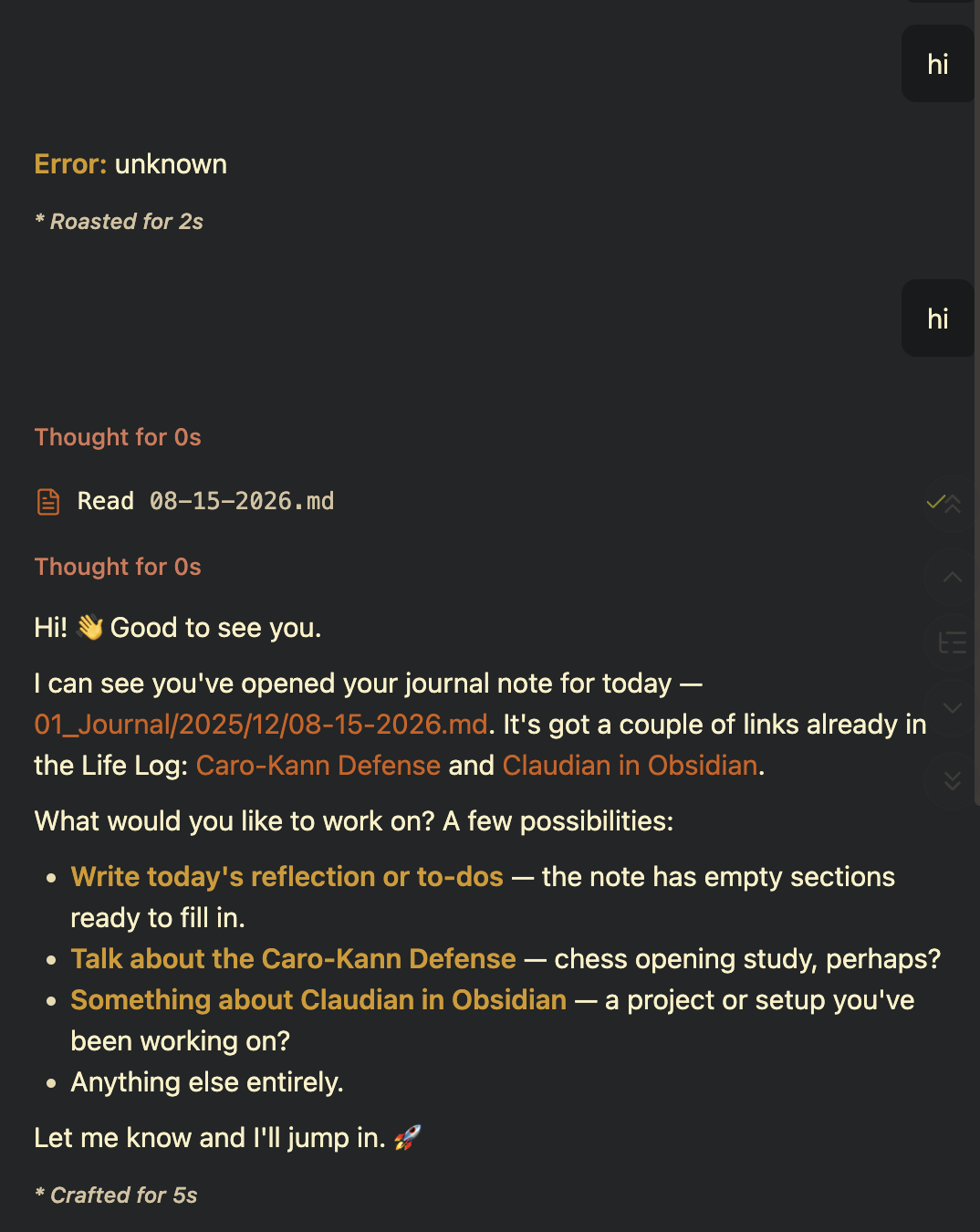
Using DeepSeek in Obsidian
I came across this article this morning, and was intrigued by the inexpensive yet powerful AI capabilities offered by Deepseek. Recently, I’ve been learning Dutch with Claude and have been considering using Obsidian + AI for note-taking, so I decided to give it a try — and it went quite smoothly.
Steps
1. Claude Code CLI
Install Claude Code CLI. On mac, I just ran the following in Terminal:
1curl -fsSL https://claude.ai/install.sh | bashand wait for a bit:
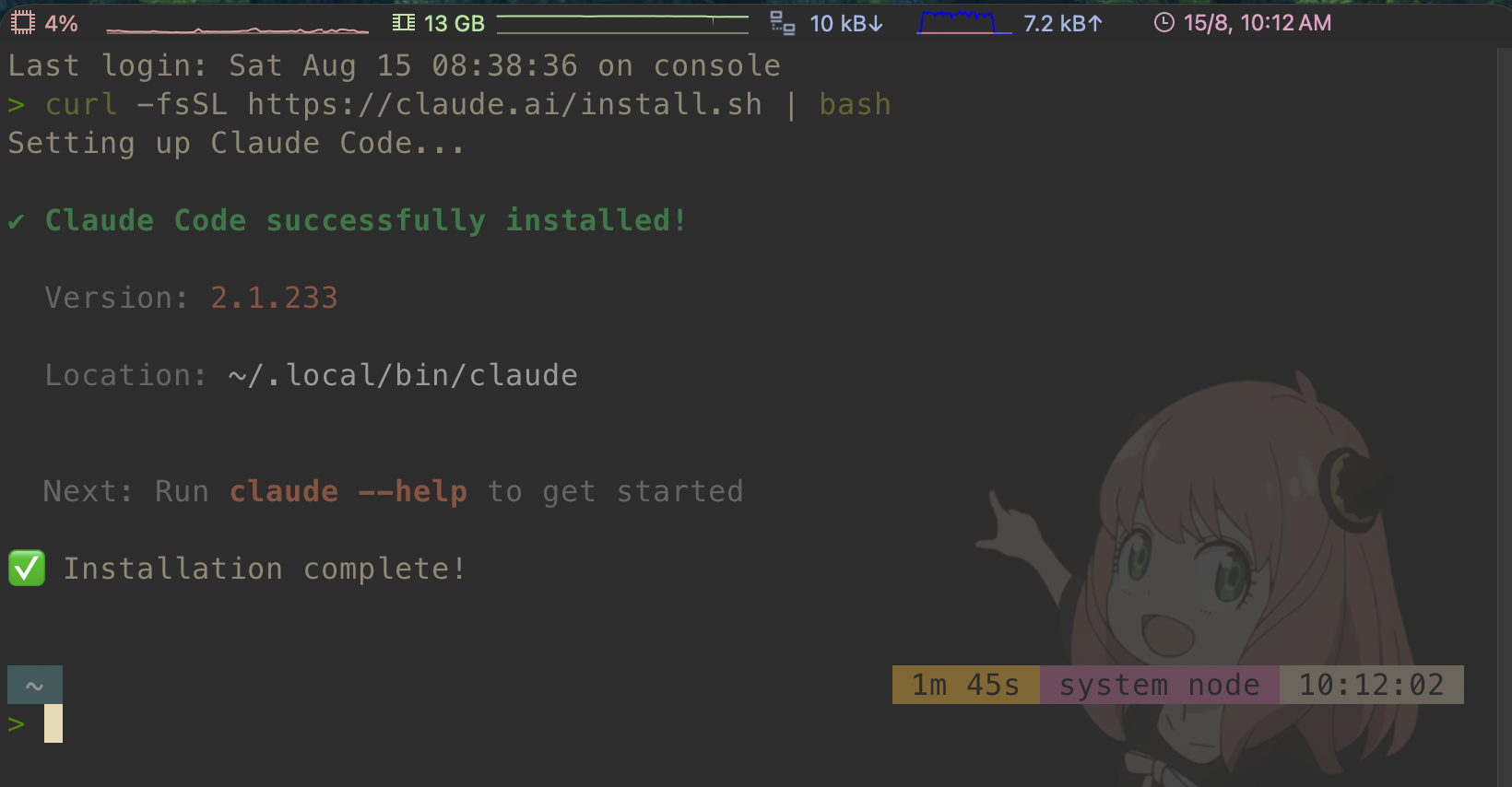
then enter:
1which claudeyou’ll get the path to Claude CLI - something like /Users/USERNAME/.local/bin/claude. Save the path somewhere (maybe Obsidian), because we’ll use this path soon.
2. DeepSeek API
2.1 Create API key
After creating a new DeepSeek account, you’ll be able to create a new API key under this page. Save the API key in a temporary place (maybe Obsidian again), as you won’t be able to view it again through your account.
2.2 Top up
The configuration failed in my first few tries, and the error message Error: Unknown didn’t help. I then ran the following test in Terminal and found out that was caused by the insufficient balance.
 1curl https://api.deepseek.com/chat/completions \
 2  -H "Content-Type: application/json" \
 3  -H "Authorization: Bearer ${DEEPSEEK_API_KEY}" \
 4  -d '{
 5        "model": "deepseek-v4-pro",
 6        "messages": [
 7          {"role": "system", "content": "You are a helpful assistant."},
 8          {"role": "user", "content": "Hello!"}
 9        ],
10        "thinking": {"type": "enabled"},
11        "reasoning_effort": "high",
12        "stream": false
13      }'
14
15# {"error":{"message":"Insufficient Balance","type":"unknown_error","param":null,"code":"invalid_request_error"}}
After topping up here , it backed to work.
3. Claudian
Before the final step, the following should have been ready:
- The Claude CLI path in Step 1;
- The DeepSeek API key in Step 2.1.
Then, opening Obsidian, searching for the Claudian (by: Yishen Tu) in Community Plugins. Install and enable the plugin, then open the plugin options page.
General:You can change the language and the relative position of the AI chatbox in Obsidian. I just left them as default.
Claude: Though Claudian doesn’t have native support for DeepSeek, DeepSeek’s API is compatible with OpenAI/Anthropic. So you can configure them under the Claude tab anyway.
Enable Claude: Make sure it’s enabled.
Claude CLI Path: Paste the path gained in Step 1.
Environment - Custom Variables: Fill in the following info based on DeepSeek API doc:
ANTHROPIC_API_KEY={DEEPSEEK_API_KEP}
ANTHROPIC_BASE_URL=https://api.deepseek.com/anthropic
ANTHROPIC_MODEL= deepseek-v4-flash
ANTHROPIC_API_KEY: The API key gained in Step 2.1.
ANTHROPIC_BASE_URL: The
base_url (Anthropic)from DeepSeek API doc, no need to change.ANTHROPIC_MODEL:
deepseek-v4-flashordeepseek-v4-pro.deepseek-v4-flashis 67% cheaper ($0.28 / 1M token), whiledeepseek-v4-prois more suitable for complex tasks. As my use cases is fairly straightforward, I choosedeepseek-v4-flash.
Start Chatting
Exit the plug-in setting page and launch Claudian from the home page. A chatbox will appear in the top-right corner (by default), and you AI journey begins 🎉